
The short version
PageFly is a strong choice if you want custom Shopify pages, built-in testing and analytics without hiring a developer. Its main trade-offs are the learning curve, slot-based pricing and the risk of losing pages when you uninstall.
If your Shopify theme is starting to feel like a straitjacket, you have probably already landed on PageFly. It is one of the longest-running page builders in the Shopify App Store, it has a free plan with no time limit, and it now pitches itself as an AI page builder and a conversion rate optimisation (CRO) suite rolled into one.
That is a lot of promises for one app. So this PageFly review goes past the sales page. I went through the pricing page line by line, the Shopify App Store listing, PageFly's help centre documentation (including the less flattering articles on limits, uninstalling and refunds), and what merchants say on the App Store, G2 and Capterra. Then I compared it, feature by feature, with nine competitors: GemPages, Shogun, EComposer, Replo, Zipify Pages, Instant, Foxify, Beae (now called Omnise) and Tapita.
By the end you will know exactly what you get on each PageFly plan, which features are genuinely useful for a small product business, what can go wrong, and whether PageFly or one of the alternatives fits your store better.

PageFly Review: The Short Verdict
PageFly is a strong choice if you want to build custom landing pages, product pages and home pages on Shopify without hiring a developer, and you want testing and analytics in the same app instead of bolting on three more subscriptions.
Here is the quick version:
- Best for: small and growing Shopify brands that want more design control than their theme allows, and stores running paid ads that need campaign landing pages.
- Free plan: genuinely usable, but limited to one published page or section. Fine for testing the editor or running one landing page; not enough to redesign a store.
- Sweet spot plan: Optimize (from $39 a month) if you want A/B testing and heatmaps; Builder (from $24 a month) if you just need a handful of pages.
- Biggest strengths: flexible drag-and-drop editor, 320+ templates, built-in A/B testing with Bayesian statistics, section-level heatmaps, 24/7 live chat support that merchants consistently praise.
- Biggest weaknesses: a real learning curve (especially getting desktop and mobile layouts right), a slot-based pricing model that punishes large page counts on the lower tiers, and uninstalling can wipe your pages, so you are more locked in than you might expect.
- Rating at time of writing: 4.9 out of 5 from 5,907 reviews on the Shopify App Store.
If that already sounds like what you need, you can install PageFly free from the Shopify App Store and come back to the details. If you want the full picture first, keep reading.
If you would rather test the editor before deciding, try PageFly free on Shopify with no time limit or card requirement.
What Is PageFly?
PageFly is a Shopify app that lets you design pages visually, by dragging and dropping elements onto a canvas, instead of editing your theme's code or settling for whatever sections your theme ships with. It launched on the Shopify App Store on 28 September 2017, which makes it one of the more established tools in the category. PageFly says it is trusted by more than 230,000 Shopify merchants.
It is Shopify-only. There is no WordPress, WooCommerce or standalone version, and that is deliberate: it is built around Shopify's products, collections, cart and themes.
Today PageFly describes itself as two things at once:
- A page builder. You can build home pages, product pages, collection pages, landing pages, blog pages, FAQ, About, Contact, 404, thank-you pages, pop-ups and reusable theme sections. The App Store listing also includes coming soon pages, link in bio pages, pricing pages, careers and legal pages.
- A CRO platform. On paid plans it adds A/B testing, heatmaps, a sales funnel report, section performance data, an AI page audit, a cart drawer builder and market-specific page versions.
It has also carried Shopify's "Built for Shopify" badge, which Shopify awards to apps that meet its standards for performance, design and integration. That is not a guarantee of anything, but it does mean the app has passed Shopify's own review bar.

Who PageFly Is For (and Who Should Skip It)
PageFly makes the most sense if you are:
- A small product brand whose theme can't produce the product page layout you have in your head, for example extra sections for ingredients, how-to-use steps, comparison tables, before-and-after images or FAQs.
- Running Meta, Google or TikTok ads and need dedicated landing pages for each campaign, offer or audience.
- Preparing for a sales event such as Black Friday and Cyber Monday and want a standalone sale page you can launch and later retire.
- Ready to start testing. If you have enough traffic to learn something from an A/B test, PageFly lets you test inside the same editor you design in.
You might be better served by something else if:
- You are happy with your theme and only want to change colours, fonts and a few blocks. Shopify's own theme editor (and the theme's built-in sections) may be all you need, and it costs nothing extra.
- You need hundreds of published pages but only want to pay entry-level prices. PageFly's lower plans are capped by published "slots".
- Your team designs everything in Figma first and wants to import designs. Some competitors (Instant and Foxify, covered below) put Figma import front and centre.
- You manage several stores and need content to sync between them. Shogun's higher plans are built for that.
Getting Started: Installing PageFly and Your First Page
Installing PageFly works like any Shopify app. You add it from the App Store, approve its permissions, and it opens inside your Shopify admin. No credit card is needed for the free plan.
There is one step that is easy to miss and causes a lot of early frustration: the PageFly Theme Extension. PageFly's help centre explains that the theme app extension must be enabled for pages to work properly with your theme, and without it interactive elements like accordions and tabs may break. You can turn it on from the App embeds area of Shopify's theme editor, from a warning message inside PageFly, from Preferences > Theme app extensions in the app, or simply by publishing your first PageFly page.

From there you have three ways to start a page:
- Start from a blank page and pick a page type (regular page, home page, product, collection, blog post and so on).
- Start from one of PageFly's 320+ templates, which you can filter by page type and niche.
- Describe what you want and let FlyMate, PageFly's AI assistant, draft it (more on how well that works below).
A few practical things worth knowing before you build:
- PageFly pages work only with your published theme. You cannot preview them on an unpublished theme, and all PageFly pages use one theme.
- By default your theme's header and footer appear on PageFly pages. You can hide them per page in Page Settings, which is handy for distraction-free ad landing pages.
- Password pages are not supported.
The PageFly Editor: What Building a Page Is Really Like
The editor is the heart of any page builder review, so let's spend some time here.

The element catalog
PageFly groups its building blocks into three families:
- Standard elements: containers for layout, basic elements (text, headings, buttons, images and so on), media, social elements, and advanced elements such as a countdown timer, a Mailchimp form and a table.
- Shopify elements: product list, product details, collection list, forms and blog. These pull live data from your store, so prices, variants and add-to-cart buttons stay accurate.
- Third-party elements: blocks from apps you already use, covering reviews and ratings, trust badges, upsell and cross-sell, subscriptions and upload fields.
On top of those you have premade sections from PageFly's library and saved sections, which are sections you built yourself and saved to reuse.
Responsive design across desktop, tablet and mobile
PageFly gives you separate responsive controls for desktop, tablet and mobile in the editor. Merchants on the App Store frequently mention separate mobile and desktop layouts as a plus. It is also, honestly, where most of the learning curve lives. Several G2 reviewers say that changes on one view can throw off the alignment on another, and that getting both right takes some practice. Budget time to check every page on a real phone before you publish.

Global styles and reusable sections
Two features save the most time once you are building more than a couple of pages:
- Global Styles let you set fonts, colours and button styles once and apply them across all PageFly pages, so your landing pages stay on-brand without restyling every button.
- Reusable sections (PageFly also calls them global sections) let you build something like a trust bar, a shipping banner or a promo strip once, then place it on multiple pages. Change it once and it updates everywhere. One recent five-star App Store reviewer singled out reusable Sections across multiple pages as their favourite feature.
Custom code for the bits the editor can't do
When the visual controls run out, you can add custom CSS and JavaScript, and there is an HTML/Liquid element for dropping in your own markup. This matters more than it sounds. A long-time user on PageFly's own site put it plainly: it is a handy builder with a lot of features, but you will find some limitations on the little details, so it helps to know some coding basics. That's a fair summary. You can build most things without code, but perfectionists will occasionally reach for a line of CSS.
Version history and backups
PageFly automatically saves your work and keeps a version history, so you can roll a page back to a previous revision. That is a safety net you will appreciate the first time you delete the wrong section at 11pm.
A note on "Gen 2" vs the Legacy editor
PageFly's documentation refers to two editor generations: the Legacy Editor and a newer Gen 2 Editor, which reduces nested containers (and, according to PageFly, simplifies layouts and helps load speed). At the time of writing the help centre says the Gen 2 beta is closed, pages already built in Gen 2 keep working, and an enhanced Gen 2 version is "coming soon" without a date. It does not change what you can build today, but it explains why you may see two styles of tutorial on PageFly's YouTube channel.
Built-in limits worth knowing
Every builder has ceilings, and PageFly is open about them in its troubleshooting docs:
- Page size limit of 256KB. This is Shopify's limit, not PageFly's, and PageFly says you usually hit it by nesting too many elements. Simpler layouts avoid it.
- Some elements are limited to one per page because duplicates would clash.
- Image uploads are capped at 20MB, which again is Shopify's limit.
None of these are deal-breakers for a normal page, but if you plan very long, element-heavy pages, keep layouts lean.
How PageFly Handles Product Pages and Collection Pages
This is a part of PageFly that confuses new users, so here is how it actually works.
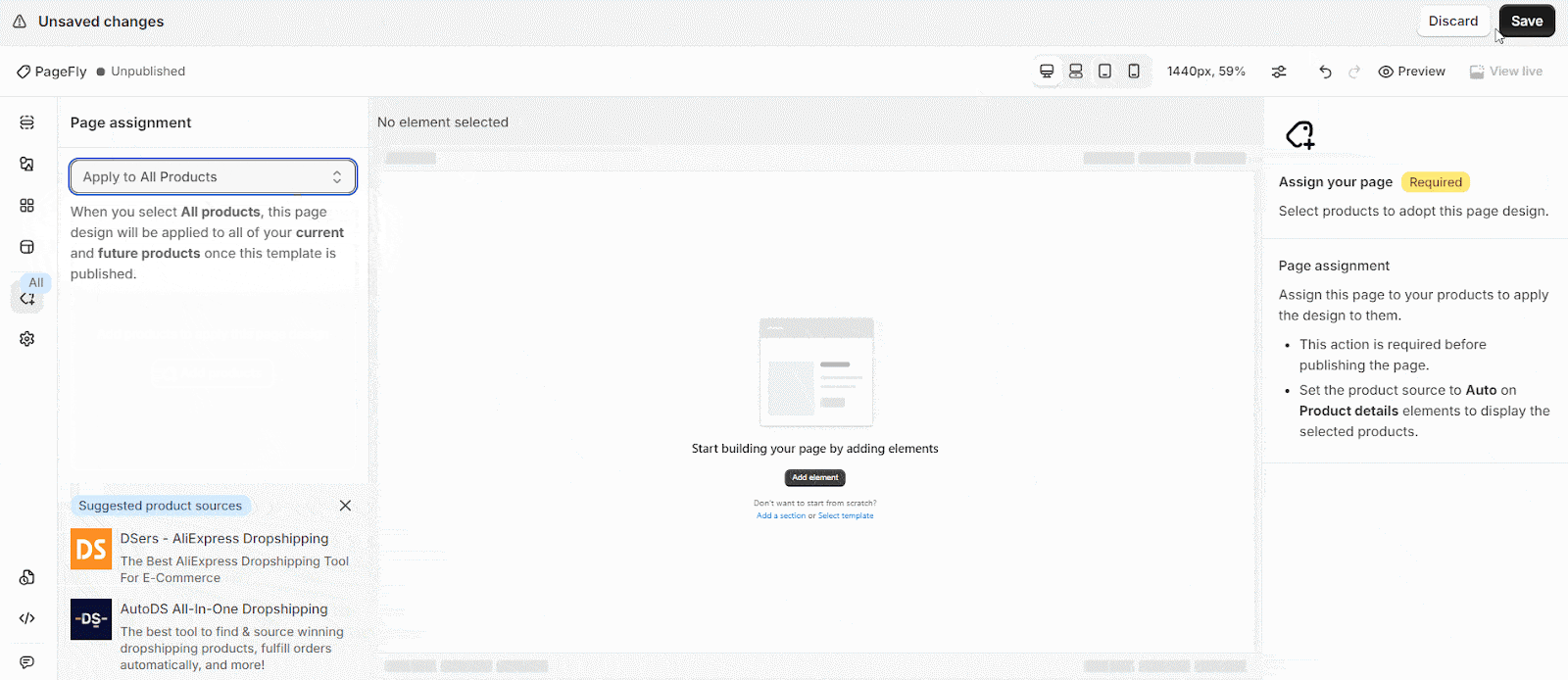
A PageFly product page does not replace Shopify's product page wholesale. Instead it acts as a layout you assign to products, and you add the Product Details element (from the Shopify tab) to pull in the real product title, price, variants and add-to-cart button. Around that you add whatever your theme couldn't: USPs, testimonials, brand logos, comparison tables, or a cross-sell section.
You can assign a product page layout to:
- All products, or
- One or several specific products you pick from a list.
If you use an Online Store 2.0 theme such as Dawn, you may see product details twice at first (your theme's and PageFly's). PageFly's documentation walks you through hiding the duplicate in the theme editor. On older themes there is a "Show default product details" checkbox in Page Settings.
Collection pages follow a similar pattern, so you can add banners, editorial content and featured products around your collection grid.
For a small handmade or product brand, this is where PageFly earns its keep. A well-structured product page that answers buyer questions (what's it made of, how do I use it, how long does shipping take, what do other buyers say) can do more for conversions than any amount of homepage polish.
PageFly Templates: 320+ Starting Points
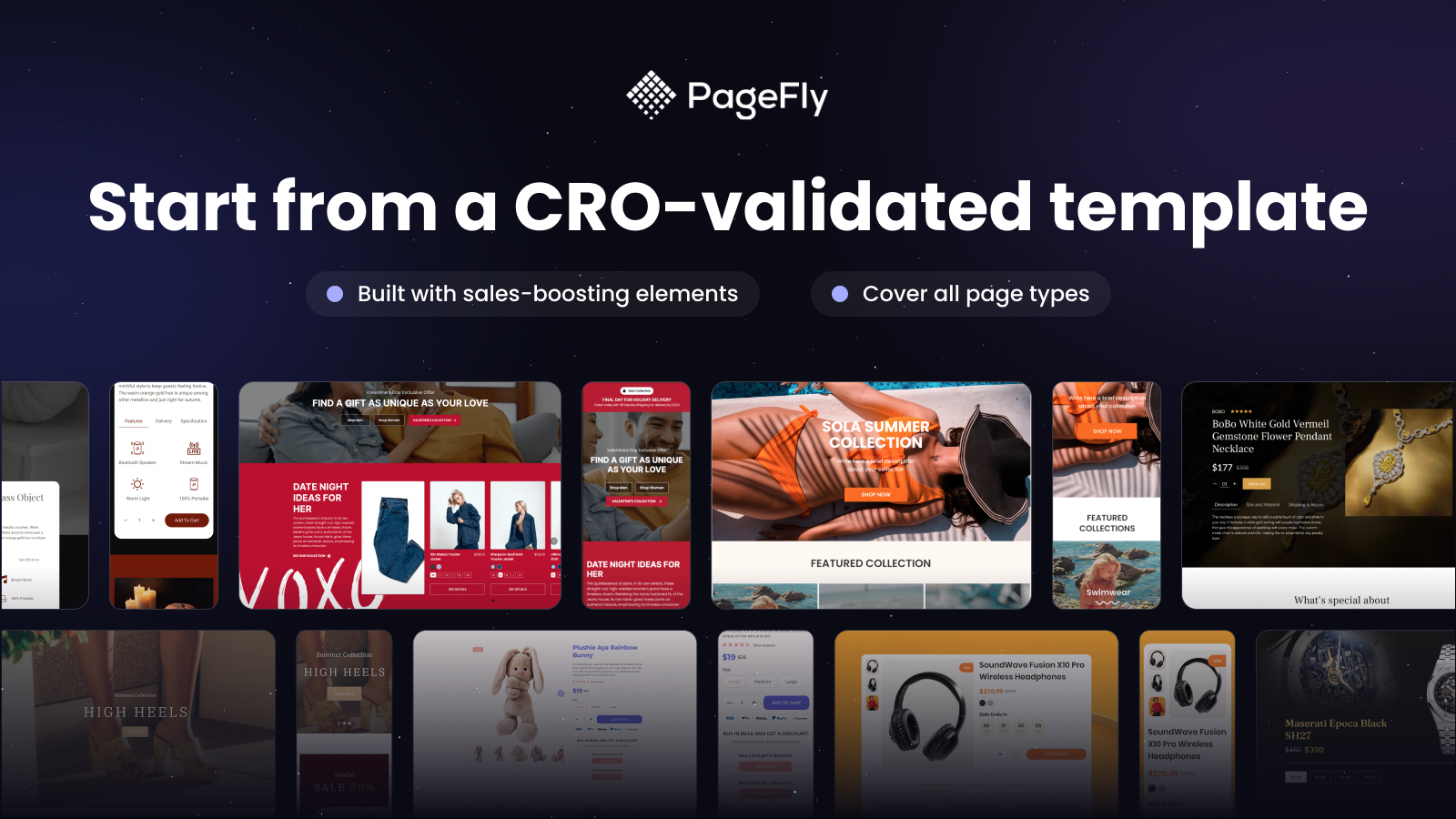
PageFly advertises 320+ page and section templates across product, landing, home and campaign pages, and the templates are available on every plan including Free. You can filter by page type and niche.
Templates are the fastest way to get a first draft live, but treat them as scaffolding rather than finished pages. PageFly's own AI Page Checkup specifically flags leftover template text and placeholder images, which tells you how common it is for merchants to publish a template without fully customising it. One Capterra reviewer also wanted templates that were more professionally designed and easier to work with, so expect to adjust spacing, imagery and copy to fit your brand.
PageFly AI Features: FlyMate, Page Checkup, AI Translator and AEO
AI is now the headline of PageFly's marketing. Here's what each AI feature does, what it costs in credits, and where it falls short. You can explore PageFly's AI features and plans before choosing a tier.
How AI credits work
PageFly's AI features run on monthly AI credits. Every plan includes some: 10 a month on Free, from 80 on Builder, from 140 on Optimize, 400 on Accelerate and 800 on Power. You can buy extra credit packs on any plan, including Free. Credits are used by FlyMate (building pages), AI Page Checkup fixes and AI Translator. Heatmaps and A/B tests do not use credits.
FlyMate AI: describe a page and let it draft one
FlyMate is PageFly's AI assistant inside the editor. You type what you want in plain language, for example a landing page for a new candle collection with a hero, three benefits, reviews and an FAQ, and it drafts pages, sections or single elements. PageFly's own demo shows it building a nine-section page one section at a time, with you approving the plan first.
It can also edit. Select an element or section, describe the change, and FlyMate applies it to the style, content or layout in real time. It can insert ready-made sections from the template library and answer how-to questions.
The honest limitations, straight from PageFly's documentation:
- You must select an element or section before asking for an edit.
- It cannot change a published page directly. You work in the editor, then publish.
- Conversation history resets between sessions.
- The help article still labels FlyMate as beta, even though the pricing page lists it on every plan. Expect it to keep changing.
PageFly is also clear that AI drafts the structure and you stay in control of every element and word. That is the right way to think about it. FlyMate gets you past the blank canvas quickly; your product knowledge and your brand voice still have to do the selling. PageFly also states your store data is not used to train AI.

AI Page Checkup: a free audit with a to-do list
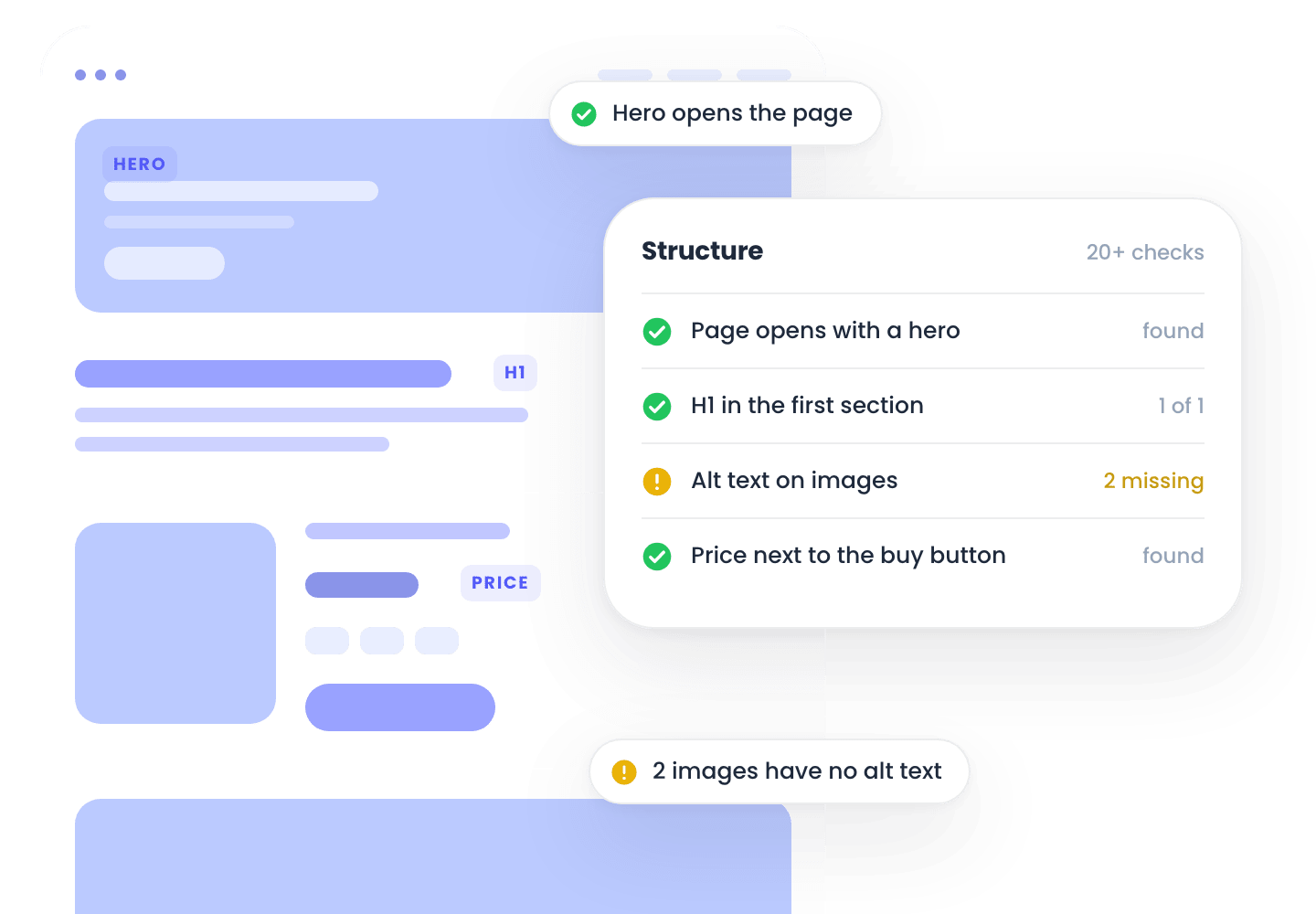
AI Page Checkup is the most useful AI feature for smaller stores, and it's available on every plan including Free. You run it on a saved page and get a score out of 100 plus a ranked list of issues labelled critical, warning or info.
It runs more than 20 structural and content checks plus 8 AI checks, grouped into:
- Structure: does the page have a hero, an H1 in the first section, alt text on images, a price next to the buy button?
- What a shopper sees: offer clarity above the fold, price legibility, review credibility, shipping and returns information.
- Unfinished content: leftover template text, placeholder images, untouched sections.
- Visitor behaviour and industry benchmark: scroll drop-off, clicks, and your add-to-cart rate against comparable stores. These two groups need traffic before they show anything.
The first scan of any page is free. Most one-click fixes cost 5 credits, and image compression is free. Nothing changes until you click.
To PageFly's credit, its own page admits the score is a list of problems ruled out, not a forecast. A page can score 100 and still not sell. Use it as a checklist, not a guarantee.
AI Translator
AI Translator translates page content into another language in one click and is included from the Builder plan. If you sell into more than one language market, it saves a lot of copy-pasting. As with any machine translation, have a native speaker check key pages, especially product claims.
AEO Optimizer: getting product pages ready for AI shopping assistants
AEO (answer engine optimisation) is a newer, beta feature aimed at a real shift: shoppers asking ChatGPT, Perplexity and other assistants for product recommendations. The AEO Optimizer scores a PageFly product page out of 100 on eight signals, including Product structured data (JSON-LD), an on-page Q&A with FAQ schema, description depth (full marks need 150+ words and 3+ specs), a spec table, whether price and availability are in the initial HTML, headings, descriptive alt text and whether AI crawlers can access the page.
Running the check is free and uses no credits, adding Product JSON-LD is a free one-click fix, and AI-written Q&A pairs cost 5 credits. It's available on Optimize and above; Free and Builder get a 7-day trial with 10 credits.
PageFly is refreshingly honest about the limits here: it measures how machine-readable your page is, it cannot guarantee AI tools will recommend you, and changes can take days or weeks to show up in AI answers. It also only works on PageFly product pages with a product bound to them.
Build with Claude, ChatGPT and Shopify Sidekick
PageFly now works as a connector for AI assistants. It is listed in the Claude directory, and PageFly says it also works with ChatGPT and other assistants that support MCP. You can brief a page in chat and have it built in PageFly using your real products and images, and it can read your Page Checkup and A/B test results to fix weak sections. PageFly says the connection is scoped to one store you approve, nothing goes live until you say so, and no order data is read. There is also an integration with Shopify Sidekick, the assistant inside your Shopify admin, which can find templates and your pages and build a landing or product page.
This is useful if you already live in one of those assistants. It is not essential, and it does not replace the editor for fine-tuning.
PageFly's CRO Center: A/B Testing, Heatmaps and the Sales Funnel
This is where PageFly separates itself from a basic page builder. Instead of paying for a page builder, a separate split-testing app and a separate heatmap tool, PageFly bundles them, starting on the Optimize plan. PageFly also points out that analytics, heatmaps and A/B testing all run on the PageFly script that is already on your store, so you are not adding another tracking script for each tool.
PageFly A/B testing
A/B testing is included on paid plans from Optimize upwards. Here is how it works in practice:
- You create variations directly in the PageFly editor, so you can test a single element, a section, or an entire page.
- You choose the winning metric, from add-to-cart rate through to overall conversion rate.
- You control how traffic is split between variations, and can adjust it as the test runs.
- You can schedule tests in advance, for example to start with a product launch or a flash sale.
- Results use Bayesian statistics and show a win probability for each variation.
- When you have a winner, you publish it as the live page in one click.
The plan limits are about how many tests you can run at once: 3 concurrent tests on Optimize, 10 on Accelerate and unlimited on Power.
PageFly says you can start testing with smaller traffic volumes and still get meaningful insight. That is broadly what Bayesian testing is good at, but no statistical method can conjure certainty out of very little data. If a page gets a few dozen visitors a week, test big, obvious changes (a new hero, a different offer, a shorter page) rather than button colours, and let tests run long enough to cover a full weekly buying cycle.
One more practical note: a regular page can have either a running A/B test or market-specific variants, not both at the same time.

PageFly heatmaps
Heatmaps show where visitors click and how far they scroll, and PageFly measures both per section rather than across the whole page. You get three views:
- Click map: warmer colours mean more clicks. Because positions are recorded per section, the map stays accurate even if you move that section later.
- Scroll depth: five bands per section (top, 25%, midpoint, 75% and full) with the share of sessions that reached each.
- Engagement score: a 0 to 10 score per section built from interactions, time spent and bounce rate.
You can filter by desktop, tablet or mobile, and you can switch on a heatmap overlay right inside the editor, so you see the heat sitting on the exact section you are about to edit. That is genuinely handy, and it means the jump from "people ignore this section" to "let's test a new version of it" happens in one app.
What heatmaps don't do is just as important. PageFly records clicks and scroll depth only. It does not track mouse movement or hover, and there is no session replay. If you want to watch recordings of individual visitors, you will still need a dedicated tool such as Hotjar or Microsoft Clarity. Tracking is also off by default, you switch it on per published PageFly page, and it can't show data from before you switched it on. PageFly says new data appears within about ten minutes.
Heatmap limits by plan:
- Optimize: 10 pages tracked at once, with a 7-day overview.
- Accelerate: 50 pages, with exact click positions and up to 180 days of history.
- Power and above: unlimited pages, exact click positions, up to 180 days.
Heatmaps never use AI credits. If you downgrade, tracking pauses and you choose which pages to keep within the new limit.

Sales funnel and section performance
The Sales Funnel report, available on paid plans, shows how visitors move from Sessions to Add to Cart to Checkout to Purchase, with the count, conversion rate and drop-off at each step. It also shows Gross Sales, Orders, Average Order Value and Revenue per Session, plus a Revenue Leaderboard that ranks your PageFly pages by revenue. That leaderboard is a quick way to see which landing pages actually make money, as opposed to which ones just get traffic.
Section performance (Optimize and up) shows how individual sections perform, which pairs naturally with the heatmap engagement scores.
Cart drawer builder (beta)
PageFly can now replace your theme's slide-out cart with a drawer you design yourself. The building blocks are aimed at increasing order value and reducing hesitation:
- Reward Ladder (for example a free shipping progress bar), Bundle Offers, Cart Recommendations, Gift Wrap and Shipping Protection
- Trust Signals, Countdown Timer, Discount Code, Order Note, Welcome Back and Announcement
Things to know before you switch it on: it is labelled beta on the App Store listing, you need to publish the drawer and turn on its app embed, some themes need a "Force replace theme cart drawer" setting, the Reward Ladder and Bundle Offers need extra Shopify permissions before they can apply discounts at checkout, and you should switch off any other cart drawer app to avoid conflicts. PageFly's theme troubleshooting notes also warn that themes with custom cart mechanisms may stop the cart drawer updating automatically.

Market localisation
If you sell into several countries using Shopify Markets, market localisation (Optimize plan and above) lets you create market-specific versions of a page, so UK visitors and US visitors see different content, imagery or offers from one base page.
The current limits are significant, so read these before you plan around it:
- It works on regular Pages only for now. Product, collection, home and blog pages are listed as coming later, and reusable sections don't support market versions.
- A market variant replaces the base content for that market. Later edits to the base page do not flow into existing variants.
- Markets are not languages. Variant content is not auto-translated; you use AI Translator for language versions.
- Shopify caches pages per market, so changes can take several minutes to show.
- PageFly's help article says eligibility applies to stores that installed PageFly from 2025 onwards.
PageFly Integrations: Will It Work With Your Other Apps?
Page builders live or die by how well they play with the rest of your app stack. PageFly's App Store listing names integrations with Judge.me, Loox, Yotpo and Okendo for reviews; Klaviyo, Omnisend and Avada for email and marketing; Kaching Bundles and Recurpay for bundles and subscriptions; BON Loyalty, Selleasy and Vitals; Meta Pixel and Google Analytics; plus Shopify Checkout, Shopify Admin and Sidekick.
The help centre also has guides for translation apps (Langify, Weglot and T Lab), SEO and image tools (SEOAnt and TinySEO, formerly TinyIMG) and even Shoplift if you prefer a dedicated A/B testing app.
On the total number, PageFly is not entirely consistent: its listing description says 130+ app integrations while the Free plan bullet says 200+ third-party app integrations. Either way, the popular apps a small store is likely to use are covered. If you rely on something niche, check PageFly's integrations page or ask support before you build around it. A few G2 reviewers did report difficulties with third-party app integrations, so test your key apps on a draft page first.

Does PageFly Slow Down Your Shopify Store?
This is one of the most searched questions about any page builder, so here is a straight answer.
PageFly's position is that its pages are built to load lean, using lazy loading and modular page rendering, and its help centre goes further and says PageFly does not affect your store's PageSpeed. Those are PageFly's claims, not independent test results, and I have not seen an independent benchmark that settles it either way.
What you can control is clear from PageFly's own guidance:
- Turn on lazy loading. You can enable it for a whole page in Page Settings (under Optimization) or per image.
- Compress images before or after upload. PageFly integrates with TinySEO to compress page images inside the editor, and AI Page Checkup includes free image compression.
- Keep layouts simple. Too many nested containers make pages heavier, and they are also what triggers Shopify's 256KB page size limit.
- PageFly's speed guide suggests keeping total page weight under 4MB and ideally under 2MB, and recommends one hero image instead of a slideshow.
- Host long videos on YouTube or Vimeo and embed them.
In practice, page speed problems on Shopify usually come from heavy images, too many apps and a bloated theme. PageFly can add to that if you build an oversized page, but a sensibly built PageFly page is not inherently slow. Run any important page through Google PageSpeed Insights before and after you publish and judge for yourself. One Capterra reviewer did mention slow loading with some themes, so test on your own theme rather than assuming.
PageFly Customer Support: Is It as Good as Reviewers Say?
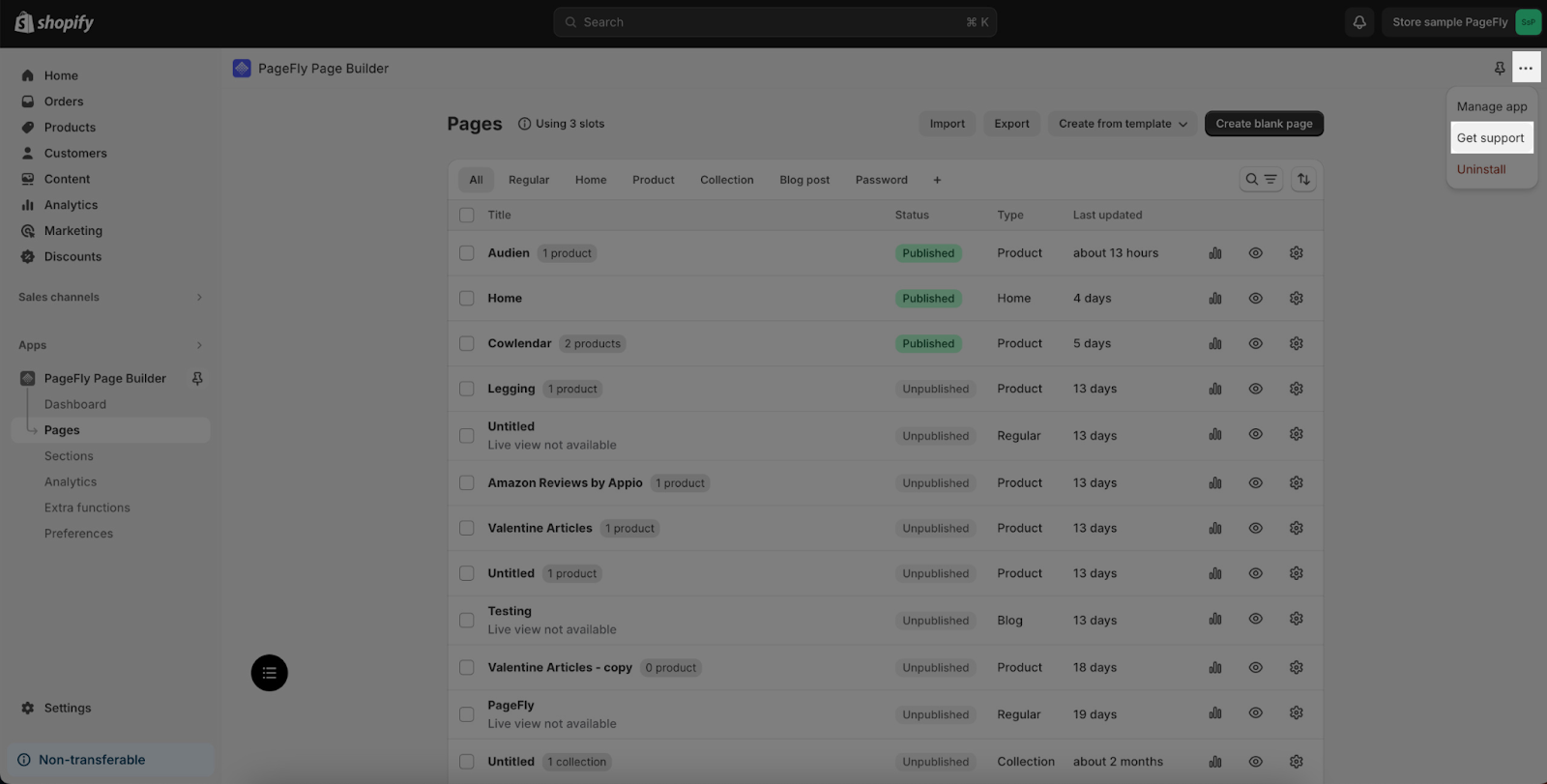
Support is the single most praised thing about PageFly. It is offered 24/7, every day of the year, on every plan including Free. You can reach it through live chat on the website, the dashboard and inside the editor, by email at happytohelp@pagefly.io, or through the contact form.
PageFly's FAQ says first responses usually arrive within minutes, but there is no guaranteed response time. Support may ask for collaborator access to your Shopify admin so they can look at, or directly fix, an issue. Shopify's AI summary of App Store reviews says merchants highlight fast, proactive support that often fixes issues directly, and one long-time user on PageFly's site described the team offering to make page edits if given collaborator rights.
On the paid side, every plan also includes what PageFly calls Free Implementation Support for a list of common requests, such as showing variant names, hiding sold-out variants, a sticky add-to-cart button, before-and-after sections, marquee text and images, and a scroll-to-top button.
It is not perfect. In September 2026 a merchant left a one-star review saying they spent two hours trying to build one page, support was slow and gave incomplete instructions, and even a basic announcement bar became difficult. PageFly's support manager replied publicly, acknowledged the case was not handled clearly, and offered a discount. That is one review among thousands, but it is a useful reminder: the editor has a learning curve, and support quality can vary from agent to agent.
PageFly Pricing 2026: Every Plan Explained
PageFly's pricing is built around two things: published slots (how many pages or sections can be live at once) and AI credits. Drafts don't count; only published pages and sections take a slot. All prices are in US dollars and billed through your Shopify bill. See PageFly's current plans and try the free option before committing.

Here are the plans as listed on PageFly's pricing page on 21 October 2026:
| Plan | Price | Published pages or sections | AI credits per month | Key extras |
|---|---|---|---|---|
| Free | $0 | 1 | 10 | Drag-and-drop editor, FlyMate AI, 320+ templates, AI Page Checkup, demo analytics dashboard, 24/7 support |
| Builder | $24 to $34/month | 5 to 15 | 80 to 120 | Everything in Free plus page analytics and AI Translator |
| Optimize | $39 to $94/month | 20 to 75 | 140 to 360 | A/B testing (3 at a time), heatmaps (10 pages), sales funnel, section performance |
| Accelerate | $99/month or $990/year | Unlimited | 400 | 10 A/B tests at a time, heatmaps on 50 pages with 180 days of data |
| Power | $199/month or $1,990/year | Unlimited | 800 | Unlimited A/B tests and heatmaps |
| Enterprise | From $299/month | Not stated | From 1,600 per store | Priority support, Page Health Monitor, founder office hours; up to $999/month for multi-store |
How the slider plans work: Builder and Optimize use a slider. You pick how many published slots you need, and the price and your monthly AI credits move with it in $5 steps. Builder runs from 5 slots at $24 up to 15 slots at $34. Optimize runs from 20 slots at $39 up to 75 slots at $94.
Annual billing: you pay for 10 months and get 12, but only on Accelerate and Power. Free, Builder and Optimize are monthly only.
Free plan reality check: the free plan has no time limit and no credit card requirement, which is generous. But one published slot means one live page or one live section. That is enough to learn the editor, run a single campaign landing page, or add one custom section to your product template. It is not enough to rebuild a store.
Which PageFly plan should you choose?
- Just want to try it, or need one landing page: Free.
- Need a handful of custom pages (say a home page, an About page and a few product layouts) and don't plan to test: Builder at $24 to $34.
- Have steady traffic and want to know what actually converts: Optimize from $39. This is the first plan with A/B testing, heatmaps and the sales funnel, and for most small brands it's the best value.
- Have lots of pages (big catalogue, many campaign pages) or run many tests: Accelerate at $99. Once you would need more than 75 slots on Optimize, unlimited slots make more sense, and annual billing brings it to $990 a year.
- Agencies and high-volume teams: Power or Enterprise.
A quick sanity check on value: on Optimize at $39 you are getting a page builder, A/B testing and heatmaps in one subscription. If you would otherwise be paying for a separate split-testing app and a separate heatmap tool, and you would genuinely use all three, this bundle is where PageFly's pricing looks strongest. If you would never run a test, it isn't.
How upgrading and downgrading work
You can change plans anytime from Preferences > Account > Change Plan inside PageFly, and the charge is recalculated automatically. When you downgrade, you need to unpublish pages until you are within the new plan's slot limit. Heatmap tracking pauses rather than silently dropping pages, and you choose which to keep.
Before You Commit: Uninstalling PageFly and the Lock-In Question
This is the section most PageFly reviews skip, and it is the one I would most want to know before building a store around any page builder.
PageFly's pages and sections live inside the PageFly app. If you stop using PageFly, those pages don't simply stay behind as normal Shopify pages.
PageFly's documentation is not fully consistent on this. The FAQ on the pricing page describes two uninstall choices, "Keep all data" (keep pages, theme templates and assets) or "Remove all data" (which leaves PageFly pages blank or non-functional). But the more detailed help centre article, "What happens if I uninstall PageFly?", says that uninstalling deletes all PageFly pages and sections along with analytics, A/B tests, fonts, global styles and saved templates; that published pages are removed from your theme and disappear from your live store; that deletion is immediate; and that PageFly keeps no backups. It also says reinstalling does not restore your data, and any discounted or grandfathered pricing is lost.
Plan as if the stricter version is what happens. In practice that means:
- Export your pages and sections before you ever uninstall.
- If you are cutting costs, downgrade to the Free plan instead of uninstalling. You keep your data and one page stays published.
- After uninstalling, check your theme files for leftover PageFly code. The help centre lists the places to look.
- If you build a whole store in PageFly, accept that moving away later means rebuilding those pages elsewhere. That's true of most visual page builders, not just PageFly, but it is worth going in with eyes open.
PageFly refund policy
Because billing runs through Shopify, refunds follow PageFly's own policy. Requests are reviewed if made within 7 days of the charge and generally cover only the current or most recent billing cycle. Prorated, day-based refunds apply to monthly plans cancelled mid-cycle, not annual plans. Changing your mind or finding the app too complex is excluded, on the grounds that the free plan lets you evaluate first, and so is forgetting to downgrade or cancel. Pausing your Shopify store does not cancel a PageFly subscription.
The takeaway: use the free plan properly before paying, and if you go annual on Accelerate or Power, be sure first.
Data access
For the privacy-conscious, PageFly's App Store listing discloses the store data it accesses, including viewing orders from the last 60 days, editing products, discounts, your theme, web pixels and Shopify Functions (for cart transforms), and Markets and translation settings. Most of that maps to features (analytics, cart drawer discounts, market pages), but it's worth reading the data access section on the listing before you install.
PageFly Pros and Cons
PageFly pros
- A free plan with no time limit and no card required, with access to the editor, templates, FlyMate AI and AI Page Checkup.
- A flexible drag-and-drop editor that goes well beyond what most Shopify themes allow, with separate desktop, tablet and mobile controls.
- 320+ templates for product, landing, home and campaign pages.
- Reusable sections and global styles that keep many pages consistent.
- Custom CSS, JavaScript and Liquid for the edge cases.
- Built-in A/B testing with Bayesian statistics, one-click winner publishing and scheduling (Optimize and up).
- Section-level heatmaps with an in-editor overlay, at no credit cost.
- A sales funnel report and revenue leaderboard that tie pages to actual sales.
- Free AI Page Checkup with a practical, prioritised fix list.
- 24/7 live chat support on every plan, consistently praised by merchants.
- Built for Shopify badge and a long track record since 2017.
- 4.9 out of 5 from 5,907 App Store reviews.
PageFly cons
- A real learning curve, particularly getting desktop and mobile layouts aligned.
- The free plan's single published slot is restrictive, and Builder caps out at 15 slots.
- Slot-based pricing means stores with many pages are pushed to Accelerate at $99 a month.
- AI credits are tight on lower plans (10 on Free, 80 on Builder) if you lean on FlyMate.
- Uninstalling can delete your pages, so there is meaningful lock-in.
- Several newer features (cart drawer, market localisation, AEO Optimizer, and FlyMate according to its help article) are still beta, and market localisation only works on regular pages for now.
- Heatmaps don't include session replay or mouse movement tracking.
- Shopify metafields support for dynamic product content is still listed as coming soon on PageFly's visual editor page.
- Some documentation is inconsistent (for example on uninstall behaviour and integration counts), so confirm anything important with support.
- Annual billing is only offered on the $99+ plans.
What Real PageFly Users Say
Review scores across platforms, as of 21 October 2026:
- Shopify App Store: 4.9 out of 5 from 5,907 reviews. About 95% are five stars, roughly 200 are four stars, and there are 26 three-star, 22 two-star and 67 one-star reviews.
- G2: 4.9 out of 5 from 101 reviews.
- Capterra UK: 4.7 out of 5, but from only three reviews, so treat it lightly. Sub-scores were 3.7 for ease of use, 4.5 for customer support, 4.0 for features and 4.7 for value for money.
The patterns are consistent across platforms. Shopify's own AI summary of App Store reviews says merchants praise PageFly for far more layout control than standard themes, separate mobile and desktop layouts, reusable sections, the option for custom code, and fast, proactive support, with many reporting better conversions after rebuilding key pages.
The complaints cluster around three things: the learning curve, mobile and desktop alignment taking extra work, and a minority of frustrating support experiences. A few G2 reviewers also mention occasional glitches and integration hiccups with third-party apps.
That lines up with what the documentation suggests. PageFly is powerful and well supported, but it rewards people willing to spend an afternoon learning it.

PageFly Alternatives: How It Compares to 9 Other Shopify Page Builders
No review is complete without the competition. Here is how PageFly stacks up against the nine builders merchants most often compare it with. Ratings, review counts and prices were checked on 21 October 2026 and are in US dollars per month unless stated.
PageFly vs GemPages
GemPages is PageFly's closest rival. It also launched in 2017, also has a 4.9 rating (from 4,261 reviews), and also offers a free plan with one published page.
The big structural difference is publishing slots. GemPages' Build plan at $29 a month gives unlimited publish slots, 20 theme sections and 400+ prebuilt CRO sections, with version history of 50 records per page. Optimize at $59 adds scheduled publishing, 100 theme sections and headless pages, and Enterprise is $199. GemPages leans hard into sales funnels with post-purchase upsells and downsells, lists A/B offer testing and analytics, quotes 160+ integrations, and offers an MCP connector for AI agents and an image-to-layout feature.
Choose GemPages if you need lots of published pages on a modest budget, or post-purchase upsell funnels are central to your strategy. Choose PageFly if you want page-level A/B testing alongside section-level heatmaps and a free AI page audit in the same editor, or you only need a handful of pages and want the cheaper $24 entry point.
PageFly vs Shogun
Shogun is the oldest app here (launched 2015), carries the Built for Shopify badge, and has a 4.8 rating from 1,973 reviews. It is aimed further up-market.
Shogun's free plan lets you build drafts but not publish anything. Build costs $39 a month (or $372 a year) for 25 published pages, Grow is $199 for unlimited pages with content scheduling and global sections, and Advanced is $499 with content syncing between stores, custom CMS collections and custom code elements. All paid plans have a 10-day trial. A/B testing is handled by a separate app, Shogun AB Testing.
Choose Shogun if you run multiple stores and need content to sync between them, or you need CMS-style collections. Choose PageFly if you want to publish something for free, want testing and heatmaps built into the same app, or $199 for unlimited pages is more than you want to spend (PageFly's unlimited tier starts at $99).
PageFly vs EComposer
EComposer is newer (launched May 2022), has Built for Shopify status and a 4.9 rating from 3,473 reviews. Its pricing is more generous with AI credits at each level.
Free gives 1 live page or section and 50 AI credits. Standard is $25 for 15 live pages and 200 credits. Pro is $49 for 50 live pages, 800 credits, A/B testing, Shopify Markets, global blocks and 29+ CRO extensions. Premium is $129 for unlimited pages, 2,000 credits and unlimited A/B testing. It advertises 400+ templates and 30+ CRO add-ons such as wishlists, back-in-stock and product compare. Annual plans and 7-day trials are available.
Choose EComposer if you want many built-in CRO extensions and more AI credits per dollar. Choose PageFly if heatmaps, the sales funnel report and AI Page Checkup matter to you, or you want unlimited pages for $99 rather than $129.
PageFly vs Replo
Replo has changed direction. Its website now positions it as an AI platform to build, design, optimise and operate your store "through chat", with a site builder, brand studio, analytics, and product and order management. It integrates with Shopify, but it is no longer simply a Shopify page builder app.
Its plan page notes that Replo AI shops are in beta. The Free plan allows 10 chat messages a day and pages on a replo.shops domain with a "Built with Replo" badge. Starter begins at $99 a month (1,000 chat messages, up to 100,000 sessions, custom domains). Pro is listed at $1,199 a month, and there is a custom tier.
Choose Replo if you want an AI-first, chat-driven system and are comfortable with a platform in transition. Choose PageFly if you want a mature, Shopify-native page builder that publishes directly into your existing theme at a fraction of the price.
PageFly vs Zipify Pages
Zipify Pages comes from a team known for direct-response marketing. It has Built for Shopify status and a 4.6 rating from 401 reviews.
There's no free plan for live stores (the free tier is for development and partner stores only). Starter is $19 a month for 5 landing pages, 1 product page and 1 split test campaign. Basic is $39 for 15 landing pages and 5 product pages. Advanced is $99 for unlimited pages, unlimited split tests, product and collection multi-assign and Markets. All plans have a 14-day trial, and split testing is included on every plan, which is a notable advantage. It also has an AI copy generator and direct-response-style templates.
Choose Zipify if you are a direct-response marketer who wants split testing from the cheapest paid plan and likes its funnel-style templates. Choose PageFly if you want a free plan for live stores, heatmaps, and more flexibility on product pages at lower tiers.
PageFly vs Instant
Instant is popular with design-led brands and agencies, largely because of its Figma plugin, which brings Figma designs straight into the builder.
Free lets you publish 1 page, 1 section and 1 blog post. Starter is $31 for unlimited landing pages, 10 theme sections, 3 product templates and 1,000 AI credits. Pro is $79 with 4,000 credits, 10,000 A/B test sessions, heatmaps and cart drawers. Business is $199 with 100,000 A/B test sessions. Yearly billing saves 20%, and paid plans come with a 7-day free trial and a 7-day money-back guarantee. Instant advertises 500+ templates.
Choose Instant if your team designs in Figma, or you want unlimited landing pages at $31. Choose PageFly if you want A/B testing and heatmaps without session caps (PageFly limits concurrent tests and tracked pages rather than sessions) or a lower entry price for testing ($39 versus $79).
PageFly vs Foxify
Foxify, from FoxEcom, launched in October 2022, has Built for Shopify status and a 4.9 rating from 327 reviews. It positions itself as an AI store builder and is generous with AI credits.
Free gives 1 page, 1 section and 20 AI credits. Starter is $19 for 10 pages, 5 sections and 150 credits. Growth is $39 for 100 pages, 100 sections, 1,000 credits, and Figma and HTML import. Enterprise is $99 for unlimited pages and 5,000 credits. Annual billing saves 20%, paid plans have a 7-day trial, and unlimited blog posts cost an extra $20 a month. It offers 250+ templates and built-in upsell, cross-sell, BOGO and wishlist features. Its App Store listing doesn't describe built-in A/B testing.
Choose Foxify if you want lots of published pages and AI credits for $39, or need Figma or HTML import. Choose PageFly if built-in A/B testing, heatmaps and a longer track record matter more.
PageFly vs Beae (now Omnise)
Beae has been renamed Omnise AI Page Builder. It launched in November 2021, has Built for Shopify status and a 4.9 rating from 879 reviews.
Its Free plan gives one published slot but adds a watermark. Start is $19.99 for 3 slots, Pro is $39.99 for 10 slots and Max is $79.99 for 25 slots, with 20% off yearly. Paid plans include section-level A/B testing, and it offers AI page generation plus an "AI Blueprint" for planning page flows.
Choose Omnise if you want section-level A/B testing for under $20. Choose PageFly if you need more than 25 published pages (Omnise tops out at 25; PageFly's Optimize goes to 75 and Accelerate is unlimited), or you want heatmaps and a sales funnel report alongside your tests.
PageFly vs Tapita
Tapita launched in February 2022 and has 566 App Store reviews. It is the budget option in this list.
Its Free plan allows 5 published pages (limited by page type) with 100+ templates. Starter is just $9 a month for 15 pages, Standard is $29 for 55 pages with unlimited blog pages and ChatGPT-powered blog content, and Professional is $59 for unlimited pages. It includes a widget builder for pop-ups and promo bars and supports language-specific sections. A/B testing isn't mentioned on its listing.
Choose Tapita if you need several published pages for as little as possible, or AI blog content is a priority. Choose PageFly if you want a deeper editor, testing, heatmaps and a much larger review base.

Shopify page builder comparison table
| Builder | App Store rating (reviews) | Free plan | Cheapest paid plan | Built-in A/B testing | Stand-out feature |
|---|---|---|---|---|---|
| PageFly | 4.9 (5,907) | Yes, 1 published slot | $24 (5 slots) | Yes, from $39 | Heatmaps, A/B tests and AI audit in one app |
| GemPages | 4.9 (4,261) | Yes, 1 page | $29 (unlimited slots) | A/B offer testing listed | Funnels and post-purchase upsells |
| Shogun | 4.8 (1,973) | Drafts only | $39 (25 pages) | Separate app | Multi-store content sync |
| EComposer | 4.9 (3,473) | Yes, 1 page or section | $25 (15 pages) | From $49 | 30+ CRO add-ons |
| Replo | Not compared (platform pivot) | Yes, replo.shops domain | From $99 | Site builder lists A/B tests | Chat-driven store operations |
| Zipify Pages | 4.6 (401) | Dev stores only | $19 (5 landing pages) | Yes, every plan | Direct-response templates |
| Instant | Not listed here | Yes, 1 page | $31 (unlimited pages) | From $79 | Figma plugin |
| Foxify | 4.9 (327) | Yes, 1 page | $19 (10 pages) | Not described | Figma and HTML import |
| Omnise (Beae) | 4.9 (879) | Yes, watermarked | $19.99 (3 slots) | Section-level, paid plans | AI Blueprint |
| Tapita | 566 reviews | Yes, 5 pages | $9 (15 pages) | Not mentioned | Lowest entry price |
PageFly FAQs
Is PageFly free?
Yes. PageFly has a free plan with no time limit and no credit card required. It includes the drag-and-drop editor, 320+ templates, FlyMate AI with 10 AI credits a month, AI Page Checkup and 24/7 support, but only one published page or section at a time.
Is PageFly worth it?
For most small and mid-sized Shopify stores that need custom product or landing pages, yes, especially on the Optimize plan where A/B testing and heatmaps are included. It is less worth it if you only want small design tweaks your theme already supports, or if you need dozens of pages on a tight budget.
How much does PageFly cost per month?
Paid plans start at $24 a month (Builder, 5 published slots), Optimize starts at $39, Accelerate is $99 (or $990 a year) and Power is $199 (or $1,990 a year). Enterprise plans start at $299. Builder and Optimize prices rise in $5 steps as you add slots.
What is a published slot in PageFly?
A slot is one live page or one live section. The free plan allows one, Builder 5 to 15, Optimize 20 to 75, and Accelerate and Power are unlimited. To downgrade, you unpublish pages until you are within the new limit.
Does PageFly work with my Shopify theme?
PageFly says its pages run natively in any Shopify theme and it supports Online Store 2.0, where you can add PageFly sections through app blocks. You need the PageFly theme app extension enabled, pages only work on your published theme, and some themes need small CSS fixes (PageFly documents common ones such as blank space at the top of a page).
What happens to my pages if I change themes?
PageFly syncs your pages to the newly published theme and shows progress notifications. Stores with many pages can hit Shopify API limits, so check your pages afterwards and republish any that failed, then confirm the theme extension is enabled on the new theme.
What happens if I uninstall PageFly?
According to PageFly's help centre, uninstalling deletes all PageFly pages, sections, analytics and settings immediately, with no backups, and published PageFly pages disappear from your store. Export your pages first, or downgrade to the free plan instead.
Does PageFly slow down my store?
PageFly says its pages load lean using lazy loading and modular rendering and do not affect PageSpeed. Heavy images and overly nested layouts can still slow any page, so enable lazy loading, compress images and test key pages with Google PageSpeed Insights.
Does PageFly have A/B testing?
Yes, from the Optimize plan. You can test elements, sections or whole pages, choose the winning metric, control the traffic split, schedule tests and publish the winner in one click. Results use Bayesian statistics.
Does PageFly have heatmaps?
Yes, from the Optimize plan: click maps, scroll depth and a section engagement score, viewable on the editor canvas. There is no mouse tracking or session replay.
Is PageFly good for product pages?
Yes. You can build a product page layout and assign it to all products or specific ones, keep Shopify's live product details, variants and add-to-cart, and add sections your theme lacks, such as FAQs, comparison tables and reviews.
Can PageFly build my home page and collection pages?
Yes. PageFly supports home, collection, product, landing, blog, FAQ, About, Contact, 404, thank-you and many other page types, plus reusable theme sections.
Does PageFly have AI?
Yes. FlyMate drafts and edits pages and sections from prompts, AI Page Checkup audits pages, AI Translator translates content and the AEO Optimizer prepares product pages for AI shopping assistants. AI features use monthly credits, from 10 on Free to 800 on Power.
Is PageFly good for SEO?
PageFly lists SEO among its page management features, and each page has its own page settings. AI Page Checkup flags missing H1s and image alt text, and the AEO Optimizer can add Product structured data in one click. Rankings still depend on your content, links and site speed.
Can I use PageFly for Black Friday landing pages?
Yes. Standalone sale pages are one of PageFly's most common uses, and A/B test scheduling lets you line tests up with launch dates. Build and test the page well before your sale starts.
Does PageFly offer refunds?
Refund requests are reviewed case by case if made within 7 days of a charge, usually covering only the most recent billing cycle. Change of mind is excluded because the free plan lets you evaluate first.
Is PageFly better than GemPages?
Neither is better for everyone. PageFly is stronger on built-in testing, section-level heatmaps and its free AI audit, and is cheaper to start at $24. GemPages gives unlimited publish slots from $29 and stronger post-purchase funnel tools.
What's the best Shopify page builder for beginners?
The best one is the one you can learn without frustration. PageFly's free plan, templates, AI drafting and 24/7 chat support make it a good starting point, but it has a learning curve. Try the free plans of two or three builders and see which editor feels natural.
Final Verdict: Should You Use PageFly?
After digging through PageFly's pricing, documentation, limits and merchant review data, my conclusion is that PageFly is one of the most complete page builders available for Shopify, and its real advantage is no longer just the editor. It is the fact that building, auditing, testing and measuring a page all happen in one place.
For a small product brand, the path that makes sense is simple:
- Start on the free plan. Build one page that matters, such as your best-selling product page or your next campaign landing page, and run AI Page Checkup on it.
- If the editor clicks for you and you need a few more pages, move to Builder.
- Once that page has steady traffic, step up to Optimize so you can see the heatmap, run an A/B test and find out what actually lifts sales.
Go in knowing the trade-offs: there is a learning curve, mobile layouts need care, the lower plans cap your page count, and uninstalling can take your pages with it. None of those are hidden if you read the documentation, and for most stores the flexibility and the built-in testing outweigh them.
If you are ready to see whether PageFly can give your store the pages your theme can't, the free plan costs nothing and has no time limit.
Try PageFly free on the Shopify App Store
Want to look at the templates, AI features and full pricing first? Explore PageFly's features and plans
Disclosure: This article contains affiliate links. If you install PageFly through them and later upgrade, we may earn a commission at no extra cost to you. It doesn't change what we've written: every feature, price and limitation above comes from PageFly's own pages and documentation or from public merchant reviews, and prices were checked on 21 October 2026.
Keep going
Software / Practical guide
Page Builder or Clearer Plan? How to Tell Whether Your Product Page Needs New Software or a Better Brief
When a product page feels wrong, a page builder looks like the obvious fix. Often the real problem is a missing measurement, a weak photo or an unclear option, and no layout tool can supply those. Write the job down as a task, try it with what you already have, and test any builder on a real page, including the sixth small edit, before you pay.

Software / Practical guide
Write an Email Platform Brief Before Comparing Plans: List the Emails You Actually Send, Then Judge Every Tool Against That
Pricing tables tell you what every platform can do. They can't tell you what your business needs to send. Spend an hour writing a one-page brief first, test one real route on your current tool, and comparing platforms becomes quick, fair and much harder to get wrong.